
Storyboard
Text to Scenes
Turn long text into a run of storyboard scenes.
How it works
1
Paste or open your text
A chapter, article, blog post, script or transcript. Open a text file if it's long.
2
Choose how it's told
Keep your words exactly as written, or have them retold as spoken narration. Facts, names and numbers stay as they are.
3
Choose what each scene is
An avatar saying it, a picture with the words as narration, or both in turn. Headings become title cards, or are left out.
4
Check and add
Read the scenes over, change any words, untick the ones you don't want, then add them to your storyboard.
The result
A storyboard ready to make
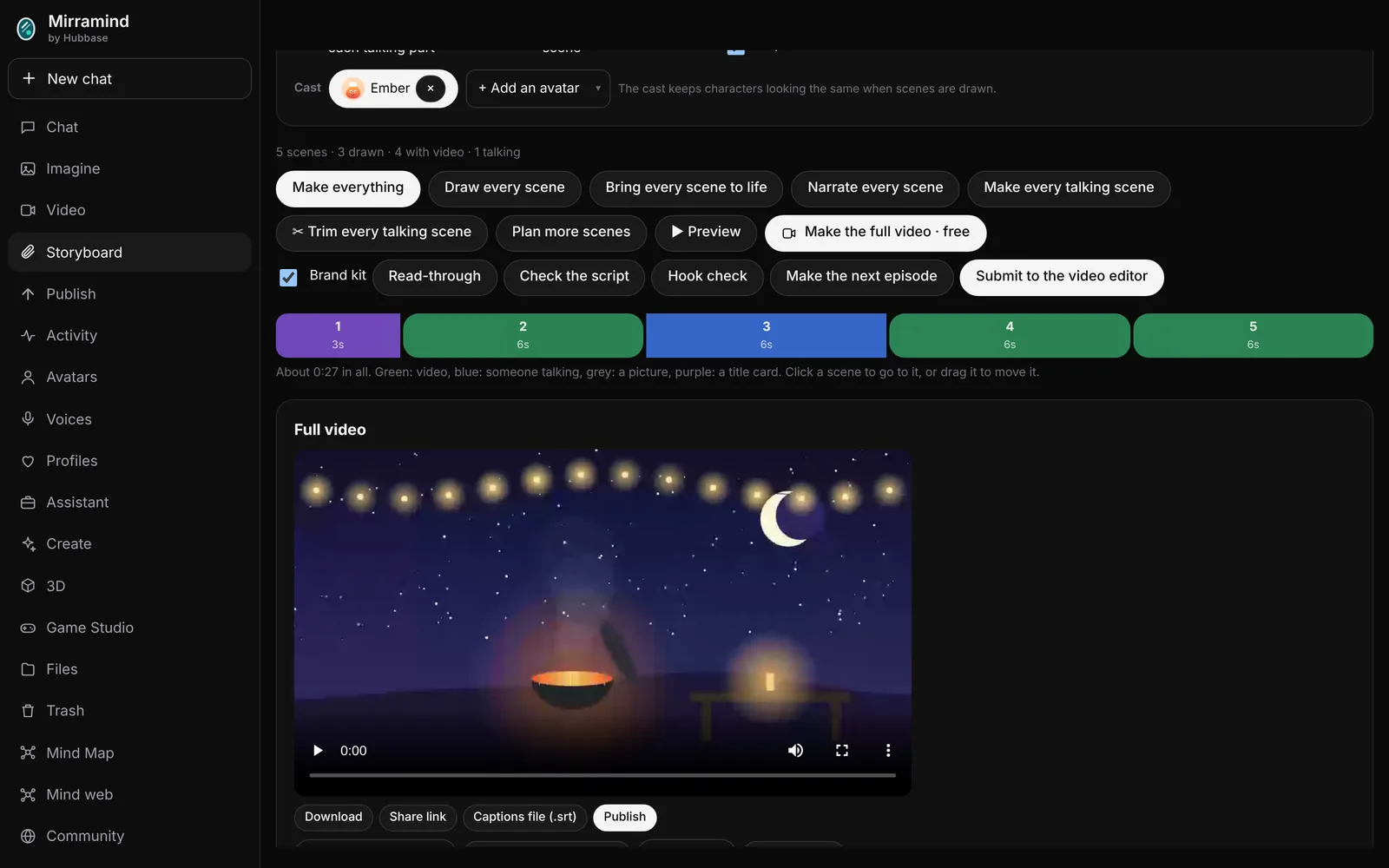
Your text arrives as scenes in order, each about the length of one talking clip, with title cards where your headings were. From there it's a normal storyboard: cast your avatars, pick a look and press Make everything.
Good to know
Does it change my words?
Not unless you choose to retell them as narration. Keep them exactly as written splits your text into scenes and leaves every word alone.
What does it cost?
Splitting your own words is free. Writing a picture direction for each scene, or retelling the text as narration, is charged like chat. Nothing is drawn or spoken until you press Make them speak, Draw or Make everything.
How long can the text be?
Long. It's worked through in parts, and a storyboard holds 80 scenes, so anything past that goes into a second storyboard named part 2.
Where do I find it?
Open a storyboard and press Text to Scenes under the scenes.
Try Text to Scenes
Open a storyboard and paste your first chapter.